Add ServiceNow to Copilot Studio with User Login SSO(So ServiceNow Permissions Are Respected)
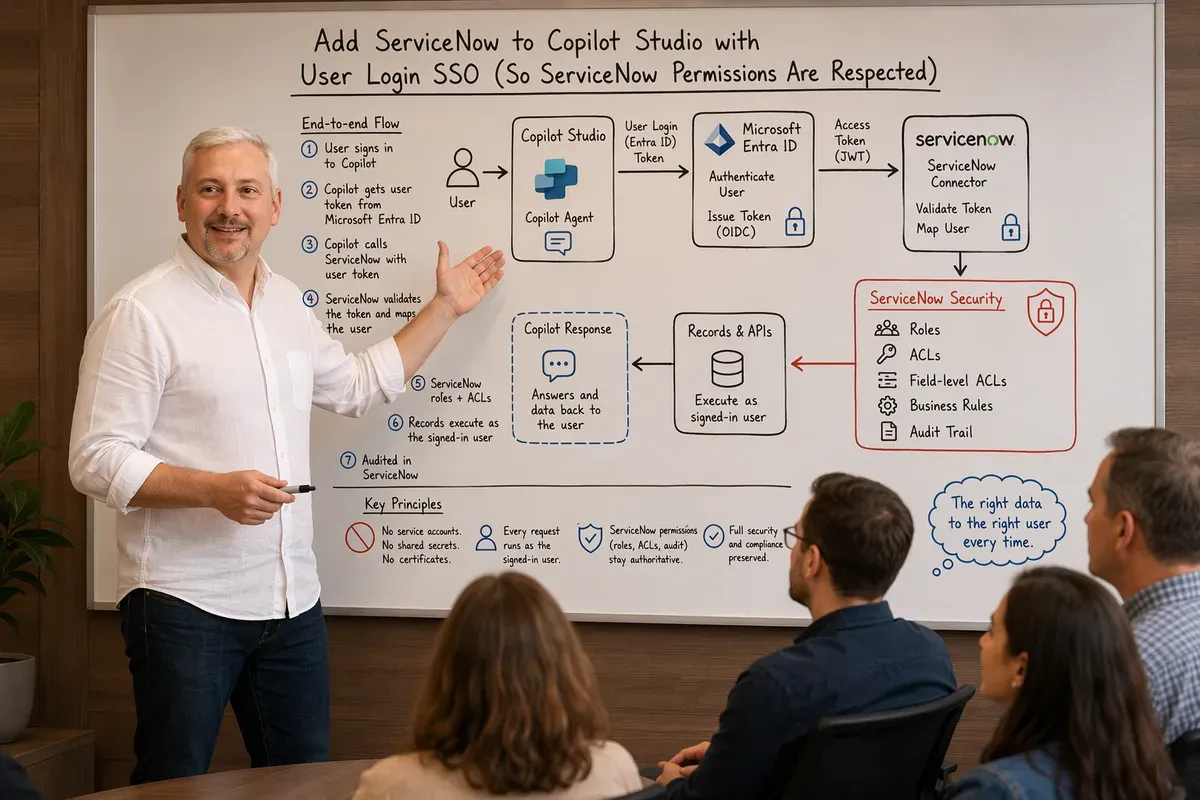
The easiest way to wire ServiceNow into a Copilot Studio agent is also the one I see cause the most trouble later: point the connector at a single ServiceNow service account and let every user’s request flow through it. It demos beautifully. Then someone realizes the agent can read and write records that the person chatting with it would never be allowed to touch on their own, because ServiceNow only ever sees the service account, not the human.
The fix is to authenticate each user with their own Microsoft Entra identity before the agent talks to ServiceNow, so ServiceNow evaluates every call as that mapped user. Existing access control lists, roles, record-level permissions, and audit trails stay authoritative. That’s exactly what the connector’s Microsoft Entra ID User Login authentication type is for, and this is the complete end-to-end setup: the two Entra apps, the ServiceNow OIDC trust, the Copilot Studio connection, and the per-user consent flow, with every gotcha I hit along the way.
Run the agent as the person, not as a service account. With delegated Microsoft Entra ID User Login, ServiceNow sees the signed-in user’s identity, so their roles, ACLs, record-level permissions, and audit identity all still apply. No shared credentials, no over-privileged agent.
Why?Why not just use Basic Auth or a certificate?
Both collapse identity to a single principal. Basic Authentication uses a fixed ServiceNow account, so every user acts as that account. Certificate OAuth is an application-token (app-only) pattern for service-to-service or unattended access, so requests execute with the application’s permissions. Neither honors the signed-in user’s ServiceNow roles. Both are legitimate choices for the right scenario. See Choosing an integration path for the full comparison. But neither is what you want behind an interactive agent.
Implementation overview
This guide walks the full trust chain: the customer-owned Entra app registration, Microsoft’s first-party connector identity, the ServiceNow OIDC provider, the Copilot Studio connection, connection-parameter sharing, and the per-user consent flow at runtime. It’s written for the three people who have to agree before this ships: the Entra admin, the ServiceNow admin, and the Copilot Studio maker.
Scope is deliberately narrow: the connector’s delegated Microsoft Entra ID User
Login flow on supported *.service-now.com instances. It doesn’t replace
ServiceNow role design, environment governance, DLP policy, or agent-level
confirmation controls. Before the walkthrough, though, it’s worth being honest
that User Login isn’t the only way to connect these two platforms, and for some
scenarios it’s the wrong one.
Here, “SSO” describes the delegated Entra identity reused by the per-user connection. The first run still includes the Allow card and can prompt the user to sign in; it isn’t a promise of zero prompts on first use.
Tested against ServiceNow releases: Yokohama, Zurich, and Australia.
Choosing an integration path
“Integrate ServiceNow with Copilot” means at least four different things, and people routinely argue past each other because they’re each picturing a different one. Before any of the auth detail matters, pick the surface.
What does the agent need to do with ServiceNow?
│
├─ Answer questions from KB articles or catalog items
│  └─ Copilot connector (ServiceNow Knowledge / ServiceNow Catalog)
│     Crawls content into the Microsoft Graph semantic index. Read-only.
│     Set up once, tenant-wide, by an M365 admin.
│
├─ Read or write live records (incidents, changes, requests)
│  └─ ServiceNow connector, added as a tool in Copilot Studio
│     ├─ Must honor each user's ServiceNow roles? → Entra ID User Login ★
│     ├─ Unattended / background automation?      → Entra ID OAuth + Certificate
│     ├─ ServiceNow team owns the credentials?    → ServiceNow OAuth 2.0
│     └─ Custom domain, GCC, or nothing else works? → Basic Authentication
│
├─ Both (grounded answers AND record actions)
│  └─ Copilot connector for knowledge + connector tool for actions.
│     They're independent — different setup, different identity model.
│
└─ Something the certified connector doesn't expose
   └─ MCP server, custom connector, or an HTTP request node

★ = the path this guide walks end to end.
Path 1: Copilot connectors (the indexing path)
Copilot connectors, the feature formerly branded Graph connectors, crawl an external system on a schedule and copy the content into Microsoft’s semantic index so Copilot and Microsoft Search can ground answers on it. Microsoft ships two in the gallery for this platform: ServiceNow Knowledge and ServiceNow Catalog. An M365 admin deploys them from the Microsoft 365 admin center under Copilot > Connectors, and Copilot Studio makers can then add them as a knowledge source on any agent.
Why?Yes, it's Microsoft Graph — but not the part you're picturing
Copilot connectors write to the external items surface of Microsoft Graph
(/external/connections), which backs the semantic index. Same API host you use
for Entra ID, Intune, SharePoint, and OneDrive; completely separate content
store. Indexing your ServiceNow knowledge base does not create directory
objects, does not put anything in SharePoint, and gives your agent no ability to
write back to ServiceNow. If the agent needs to open an incident, you still need
Path 2.
Authentication for the connector crawl itself:
| Auth type | What you configure | Pros | Cons |
|---|---|---|---|
| Federated Auth (Microsoft’s recommendation) | Look up the service principal object ID of Microsoft’s first-party connector app 933838e2-bec1-440f-a634-9363c82e5b6d, register an Entra ID OIDC provider in ServiceNow, then create a ServiceNow user with Identity Type = Machine, User ID = that object ID, and the knowledge_admin, user_criteria_admin, and user_admin roles | No secret to store or rotate; nothing expires on you | Newest option, so fewer people have run it; needs a ServiceNow release that supports OIDC ID token verification and machine identities |
| Basic authentication | A ServiceNow account with the knowledge (or catalog) role | Fastest to stand up; works on custom domains | Password stored in the connector config; rotation is a manual, breaking event |
| OAuth 2.0 | An OAuth endpoint in ServiceNow’s Application Registry, with the redirect URL set to the Microsoft Search callback for your cloud (commercial, GCC, GCC High, DoD each differ) | Token-based; ServiceNow admins control lifespans | Client secret to manage; wrong redirect URL for your cloud is the classic failure |
| Microsoft Entra ID OpenID Connect | A single-tenant Entra app with a client secret, plus an OAuth OIDC entity in ServiceNow | Keeps trust anchored in Entra ID | Still a client secret with an expiry date |
Why?How permissions actually work on the indexing path
All four options crawl as a single identity. Per-user security trimming doesn’t come from the signed-in user’s ServiceNow session; it comes from ServiceNow user criteria captured at index time and mapped onto the indexed items. Two flows exist: Simple (the default) ignores script-based user criteria, and Advanced evaluates them by calling a Scripted REST API. If a script-based criterion sits on a Cannot Read path and you’re on Simple, the connector fails safe and hides that content from everyone. That’s documented behavior, not a bug, but it surprises people who assume “nothing showed up” means the crawl broke.
Path 2: The ServiceNow connector as a tool
This is the live path. The certified Microsoft-published ServiceNow connector (Premium in Copilot Studio, Power Apps, Power Automate, and Logic Apps) calls the ServiceNow REST API in real time: Create Record, List Records, Update Record, Get Knowledge Articles, Order item, attachments, and so on. Nothing is copied anywhere; every call hits your instance and is subject to that instance’s ACLs for whichever identity you authenticated as.
That identity is the whole game, and it’s chosen entirely by the authentication type on the connection:
| Auth type | ServiceNow sees | Shareable? | Requires |
|---|---|---|---|
Microsoft Entra ID User Login (entraIDUserLogin) | The signed-in agent user, mapped by OIDC claim | No, each user gets their own connection | Entra “Application A” exposing user_impersonation, connector app c26b24aa-… authorized on it, a ServiceNow OIDC provider config, a matching sys_user per person, and parameter sharing turned on |
Entra ID OAuth using Certificate (aadOAuthCert) | The application, not the person | Yes | A PFX certificate plus tenant ID, client ID, and resource URI; Power Platform only |
ServiceNow OAuth 2.0 (oauth2ServiceNow) | Whichever ServiceNow account authorized the connection | No | An OAuth endpoint in ServiceNow’s Application Registry with a client ID and secret |
Basic Authentication (basicAuthentication) | One fixed ServiceNow account | No | Instance name, username, and password |
| Default | One fixed ServiceNow account | No | Deprecated; exists only for legacy connections. Don’t build on it. |
And the trade-offs behind those requirements:
| Auth type | Pros | Cons |
|---|---|---|
| Entra ID User Login | ServiceNow roles, ACLs, record-level permissions, and audit identity all stay authoritative; no secrets or certificates anywhere; least-privilege comes free because it’s already modeled in ServiceNow | Every user needs an active sys_user with the right roles and a matching claim value; each user hits a one-time consent card; interactive scenarios only; *.service-now.com instances only |
| Certificate (app-only) | Works unattended, so it’s the right answer for scheduled or background flows; the connection is shareable, so one setup serves many makers | Every request runs with the application’s rights: one over-permissioned ServiceNow account away from an oversharing incident; certificates expire and someone has to own renewal; a shared connection also shares the throttle budget |
| ServiceNow OAuth 2.0 | No Entra app registration needed, which matters when the ServiceNow team owns identity end to end; honors the authorizing account’s ACLs | Client secret to store and rotate; the identity is “whoever set it up,” not the person chatting; redirect URI mismatches are the number-one setup failure |
| Basic Authentication | Works everywhere the others don’t: custom domains, migrated instances, GCC scenarios; nothing to register on either side | Shared credential, zero per-user accountability, every audit record points at the service account, and password rotation silently breaks every agent using it |
Why?Throttling is per connection, and that changes the math
The connector allows 600 API calls per connection per 60 seconds. With Entra ID User Login every user has their own connection, so the budget scales with your user base. With Certificate or Basic Auth, everyone shares one bucket; a popular agent can throttle itself at scale. Worth modeling before you pick the “simpler” option.
Path 3: MCP servers, custom connectors, and raw HTTP
When the certified connector doesn’t expose what you need, such as a scoped app’s custom table, a Scripted REST API, or a workflow you’ve built yourself, you have three escape hatches. Copilot Studio can consume MCP servers (generative orchestration must be on, and the server’s tools appear automatically), you can build a custom connector from an OpenAPI definition, or you can call the API directly from an HTTP request node.
All three trade convenience for ownership. You handle authentication, token refresh, error handling, and throttling yourself, and DLP policy treats a custom connector differently than a certified one. Verify what your ServiceNow release offers here before designing around it; this space has moved fast and what’s available depends heavily on your instance version and plugins.
The short version
Use a Copilot connector when the answer already exists in a knowledge base or catalog and the agent just needs to find it. Use the connector as a tool with Entra ID User Login when the agent acts on live records on someone’s behalf and ServiceNow’s permission model has to hold. Reach for Certificate only for genuinely unattended work, and treat Basic Authentication as a compatibility fallback rather than a design choice.
The rest of this guide is the User Login path, start to finish.
Why?I packaged this walkthrough as a Copilot skill
Everything below is also encoded as an Agent Skill so GitHub Copilot can do the setup with you instead of you translating a blog post into portal clicks. The repo has two skills, deliberately kept apart because people conflate them constantly:
servicenow-power-platform-delegated-auth: the path this guide walks: delegated Microsoft Entra ID User Login for the Power Platform ServiceNow connector, so Copilot Studio tools, Power Automate flows, and Power Apps call ServiceNow as the signed-in user. Covers the resource app registration, the Microsoft first-party connector client, ServiceNow inbound OIDC token validation, claim-to-user mapping, and per-user ACL enforcement.servicenow-entra-browser-sso: a different problem entirely: interactive workforce sign-in to the ServiceNow web UI through Multi-Provider SSO, SAML by default. Gallery app configuration, user matching, pilot cutover, rollback, and how not to lock your admins out.
Copy the directories into .github/skills/ for a repo, or your personal skills
directory (~/.copilot/skills/ for Copilot CLI). Every consequential statement
in them is labeled as vendor-documented, standard platform behavior, field
observation, or needs-verification, so the agent tells you when it’s repeating
something it couldn’t check rather than inventing a navigation path.
Architectural overview
At runtime the flow is a single, unbroken chain of trust: the user signs in with
Entra ID, Entra issues a token as that user, ServiceNow’s OIDC trust validates
the token, maps the upn claim to a ServiceNow user, and executes the API call
under that identity.
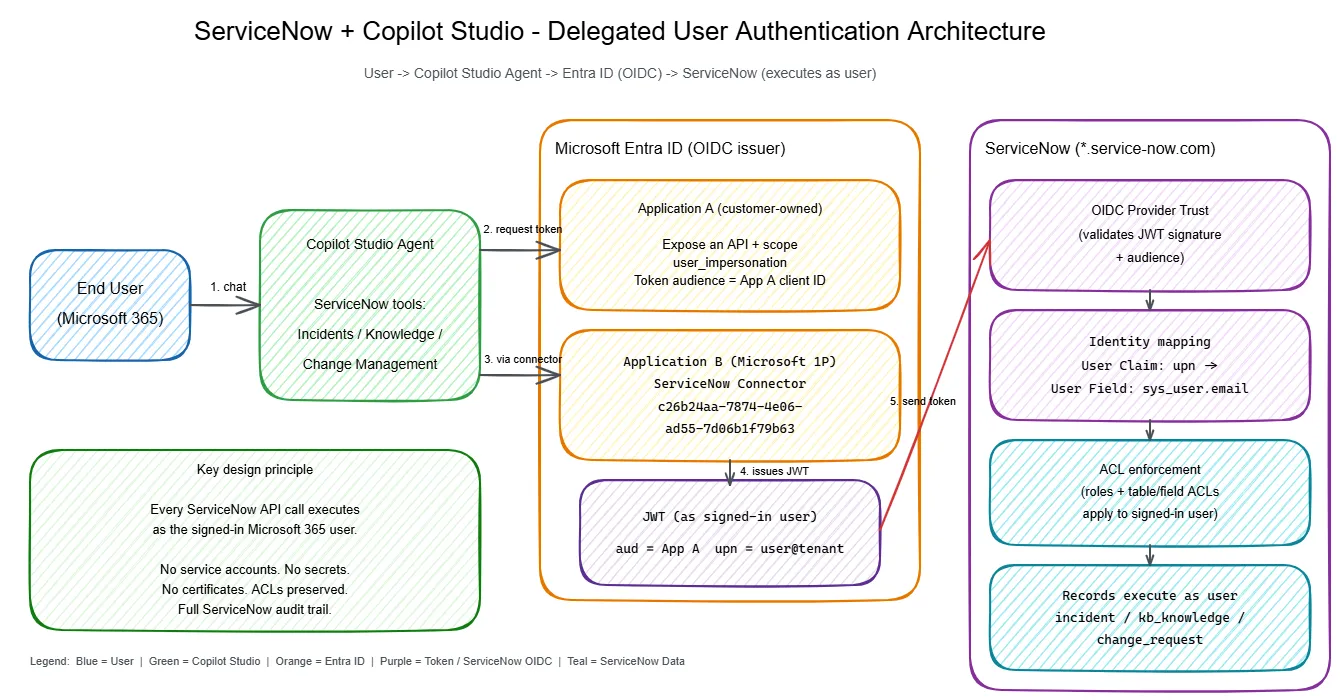
End User → Copilot Studio Agent → Entra ID (issues token as user)
        → ServiceNow OIDC Trust (validates JWT)
        → Maps upn claim → sys_user.email
        → API executes as signed-in user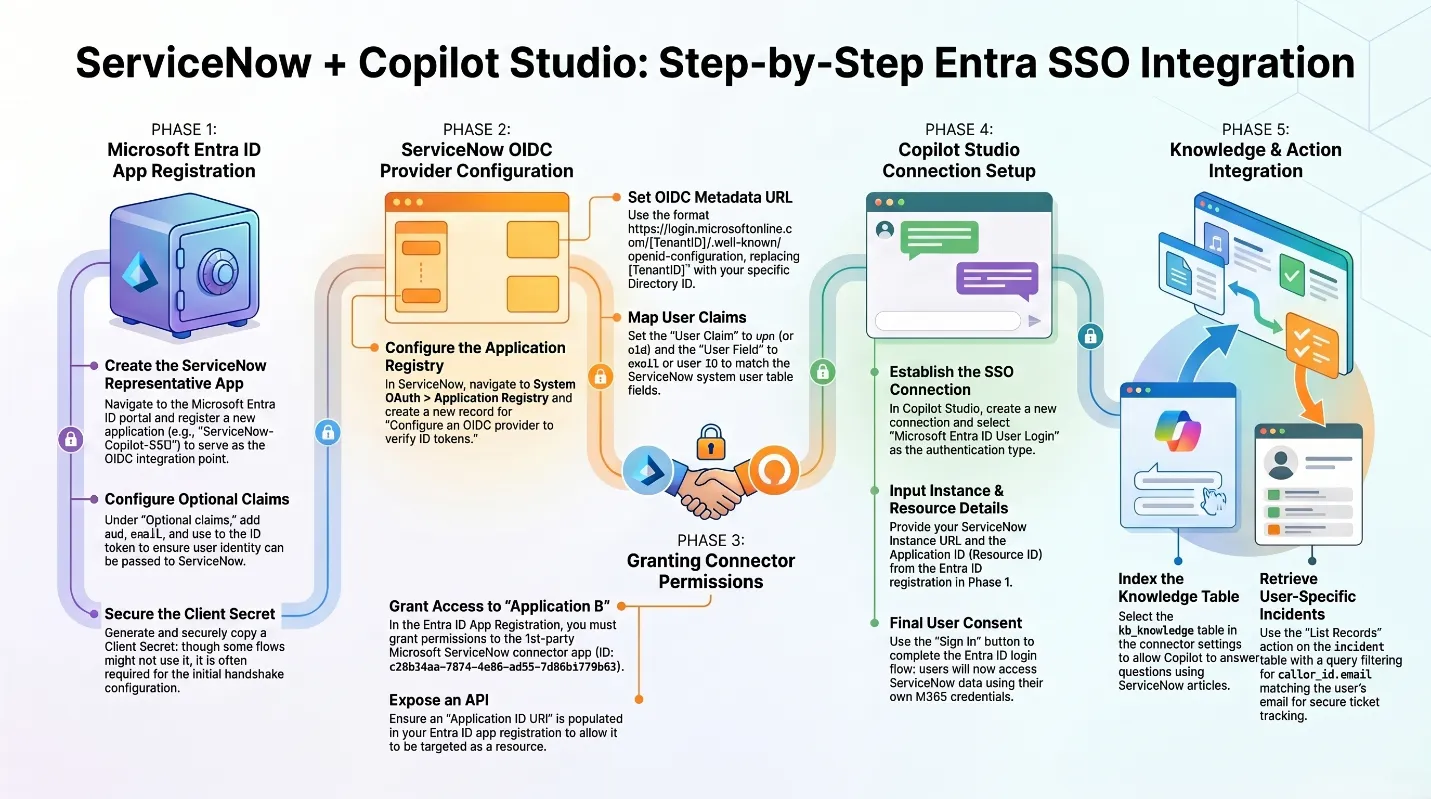
Two Entra application identities are involved:
- Application A (customer-owned): represents the ServiceNow resource. You create this.
- Application B (Microsoft-owned first-party connector): client ID
c26b24aa-7874-4e06-ad55-7d06b1f79b63, as documented in Microsoft’s ServiceNow integration guidance. Microsoft owns its multitenant app registration; your tenant uses a local service principal (shown under Enterprise applications) when the app is consented for use. Do NOT create your own app registration for this ID.
Why?Keep the two apps straight — it's the #1 source of confusion
Application A is the resource: it’s the audience ServiceNow trusts and the
thing you expose a user_impersonation scope on. Application B is
Microsoft’s shared connector app that actually requests tokens on the user’s
behalf. Its service principal is the tenant-local instance of Microsoft’s
application;
your job is to authorize that client on Application A, never to recreate its
app registration. If you find yourself registering an app with that GUID, stop.
Prerequisites
- Admin access to Microsoft Entra ID (Azure portal)
- Admin access to a ServiceNow instance (Yokohama, Zurich, or Australia release)
- Copilot Studio maker access with an agent that will use a ServiceNow connector action
- ServiceNow OAuth enabled
Delegated auth gets you the right identity; it doesn’t grant capability. What
the agent can actually do still depends on the connector operation, the
ServiceNow APIs and plugins you’ve enabled, and the signed-in user’s own roles.
Incident and change operations need the corresponding ServiceNow roles, and
knowledge operations need access to the relevant knowledge bases plus the
Knowledge API (sn_km_api) plugin where applicable.
Why?⚠ ServiceNow domain limitation: custom domains are not supported
The ServiceNow connector’s OAuth User Login flow only supports instances on
*.service-now.com. Custom domains such as *.servicenowservices.com are
not supported and will fail authentication. Customers on custom domains must
fall back to Basic Authentication.
Step 1: Register the ServiceNow OIDC app in Entra ID
Register an app in Entra ID that represents your ServiceNow instance (“Application A”). ServiceNow will use this app as the token audience.
- Go to Entra ID > App registrations > New registration.
- Name it (e.g.,
ServiceNow OIDC) and set audience to Single tenant. - Leave Redirect URI blank.
- Click Register, then capture the Application (client) ID and Directory (tenant) ID from the Overview page.
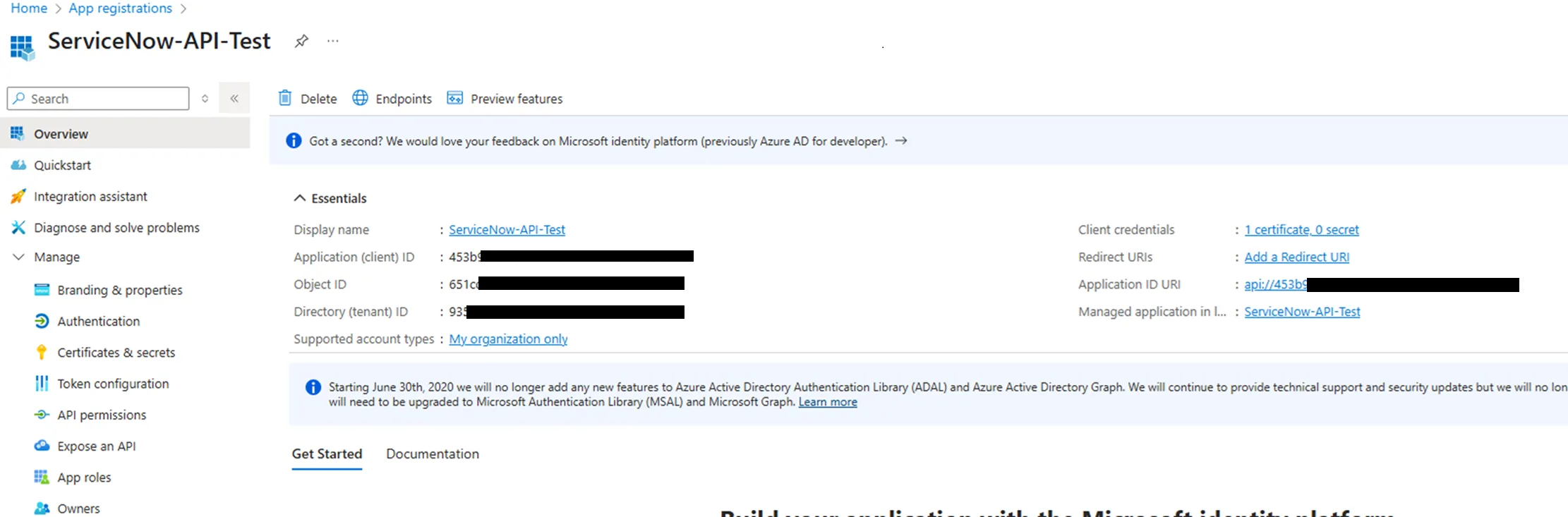
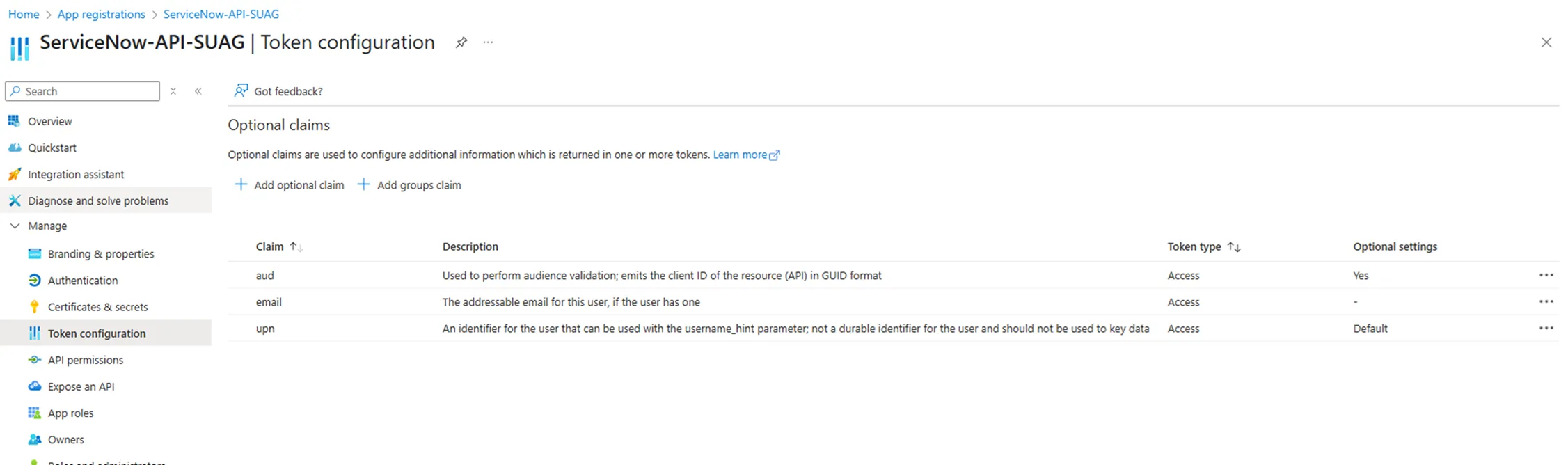
- Under Token configuration > Optional claims, add
aud,email, andupnto both the ID token and Access token.
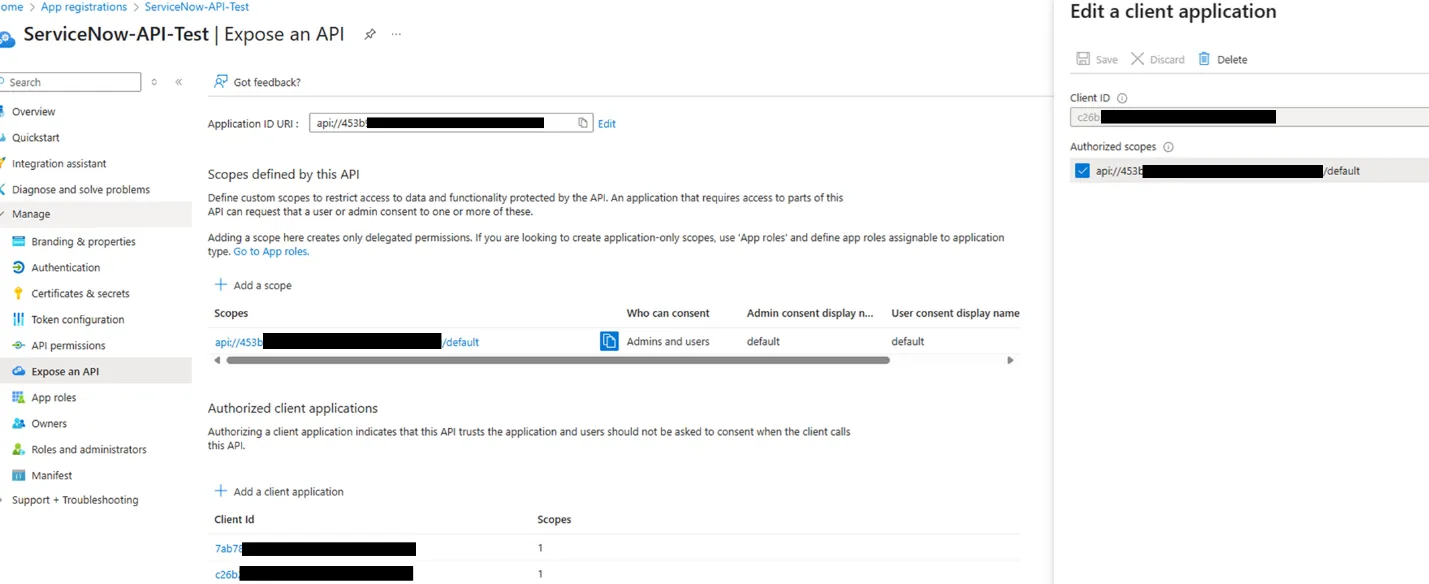
- Under Expose an API:
- Set the Application ID URI to
api://<client-id>. - Add a scope named
user_impersonation. - Who can consent: Admins and users.
- Provide an admin consent display name and description.
- Set the Application ID URI to
- Under Expose an API > Authorized client applications, add the ServiceNow
connector first-party app:
- Client ID:
c26b24aa-7874-4e06-ad55-7d06b1f79b63 - Select the
user_impersonationscope.
- Client ID:
Step 2: Configure the OIDC provider in ServiceNow
ServiceNow needs to trust ID tokens issued by Entra ID. The navigation path differs by ServiceNow release.
ServiceNow Yokohama
- Navigate to System OAuth > Application Registry > New.
- Select Configure an OIDC provider to verify ID tokens.
ServiceNow Zurich & Australia
- Navigate to System OAuth > Application Registry > New.
- Select New Inbound Integration Experience > New Integration.
- Choose Third party ID token issued by OIDC supporting identity provider.
Configuration (applies to all ServiceNow releases)
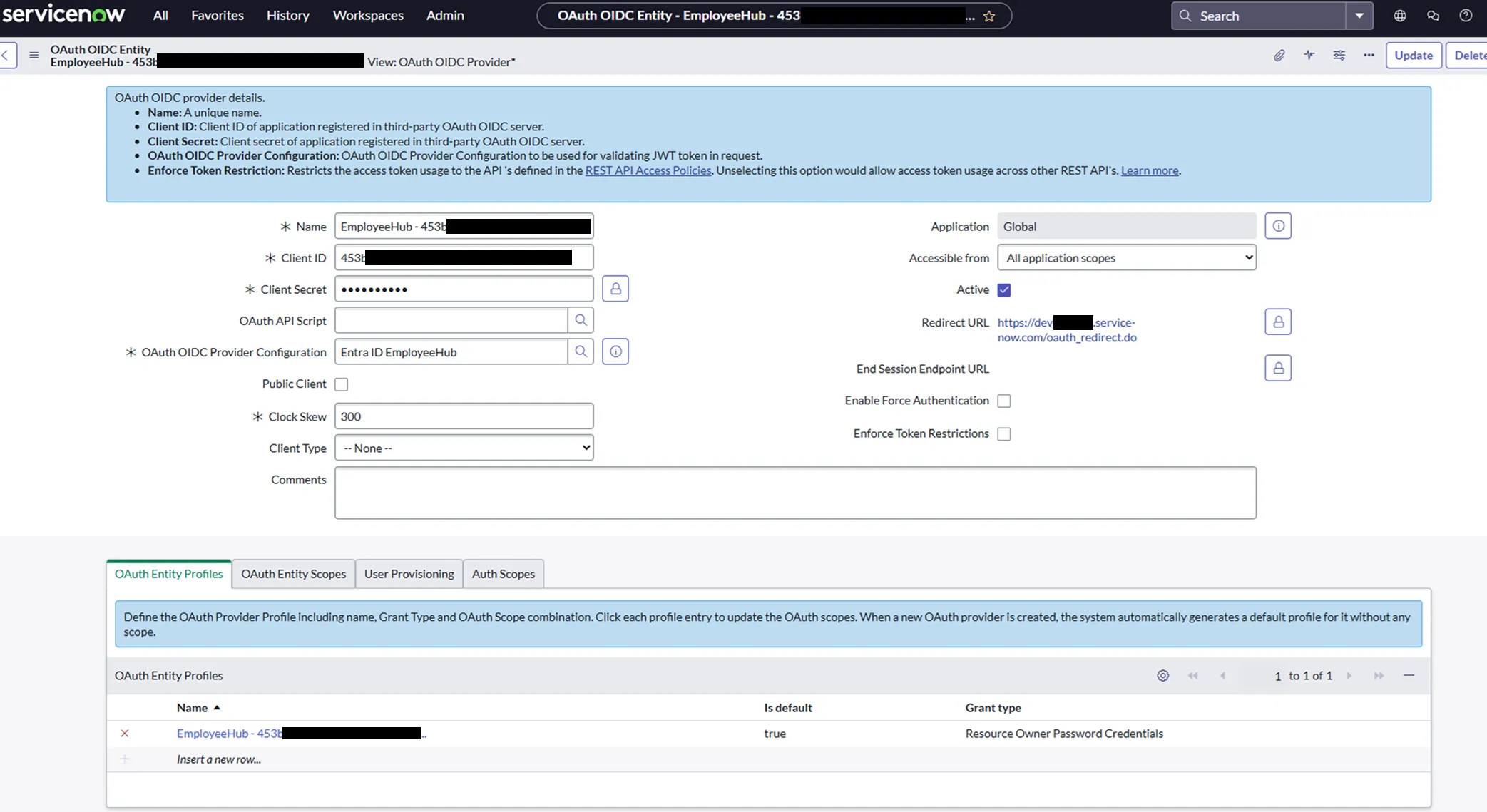
OAuth Application Registry entry:
- Client ID: the ServiceNow OIDC app’s client ID (from Step 1)
- Client Secret: any value (not used in this flow, but the field is required)
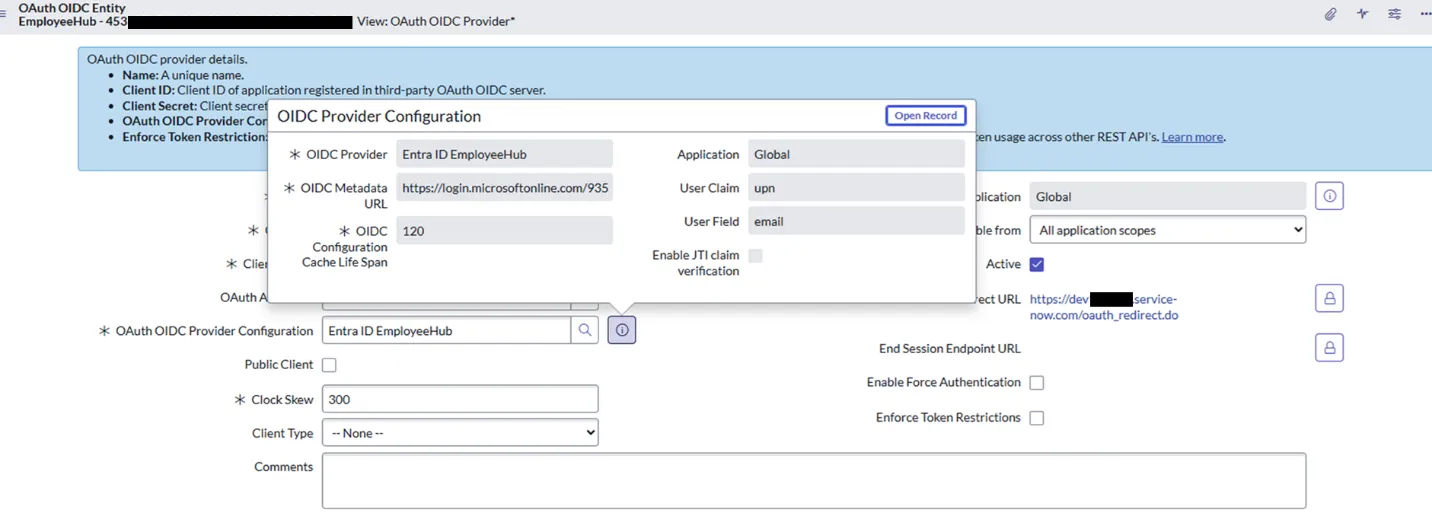
OIDC Provider Configuration (create new):
| Setting | Value |
|---|---|
| OIDC Provider | Microsoft Entra ID |
| OIDC Metadata URL | https://login.microsoftonline.com/<tenant-id>/.well-known/openid-configuration |
| User Claim | upn |
| User Field | email |
| Cache Life Span | 120 |
| Enable JTI claim verification | Disabled |
| Application | Global |
| Active | Yes |
Why?Why email and not user_name?
ServiceNow’s sys_user.user_name field (displayed as “User ID”) has a
40-character limit. Many ServiceNow OIDC examples default the User Field to
user_name, so mapping to email here is a deliberate choice rather than the
common default. UPNs from long tenant names (e.g.,
firstname.lastname@long-tenant-name.onmicrosoft.com) can exceed the
user_name limit and cause silent identity-mapping failures. Mapping to
sys_user.email avoids that limit and is more robust across tenants.
Save the OIDC Provider Configuration, then save the Application Registry entry.
Step 3: Verify ServiceNow user records
Each Entra ID user who will use the agent needs a corresponding ServiceNow user
whose email field matches their Entra ID upn claim value.
Verify by opening a test user in ServiceNow and confirming:
- The user is active.
sys_user.email= the user’s Entra UPN (typicallyfirstname.lastname@tenant.com).- The user has the ServiceNow roles required for the tables you’ll query (e.g.,
itilfor incidents,knowledgefor KB).
Why?Identity mapping tip
If the user’s UPN differs from their email (common in federated tenants),
either update the ServiceNow email to match the UPN, or configure a custom Entra
claim and map it in the OIDC Provider Configuration. If your ServiceNow user IDs
aren’t email addresses or UPNs at all, a salary ID or an account name, say,
Microsoft documents that case separately under
Match users when the ServiceNow user ID isn’t an email or UPN.
The User Claim and User Field just have to name a token claim and a sys_user
column that hold the same value; upn/email is the common pairing, not the
only legal one.
Step 4: Maker creates the initial connection
The agent maker must set up the connection first before end users can use it.
- In Copilot Studio, open your agent and add a ServiceNow tool (e.g., Get Record Types, List Records, or Create Record).
- Go to Settings > Connection Settings for the ServiceNow connection.
- Click + Add new connection (or use an existing one).
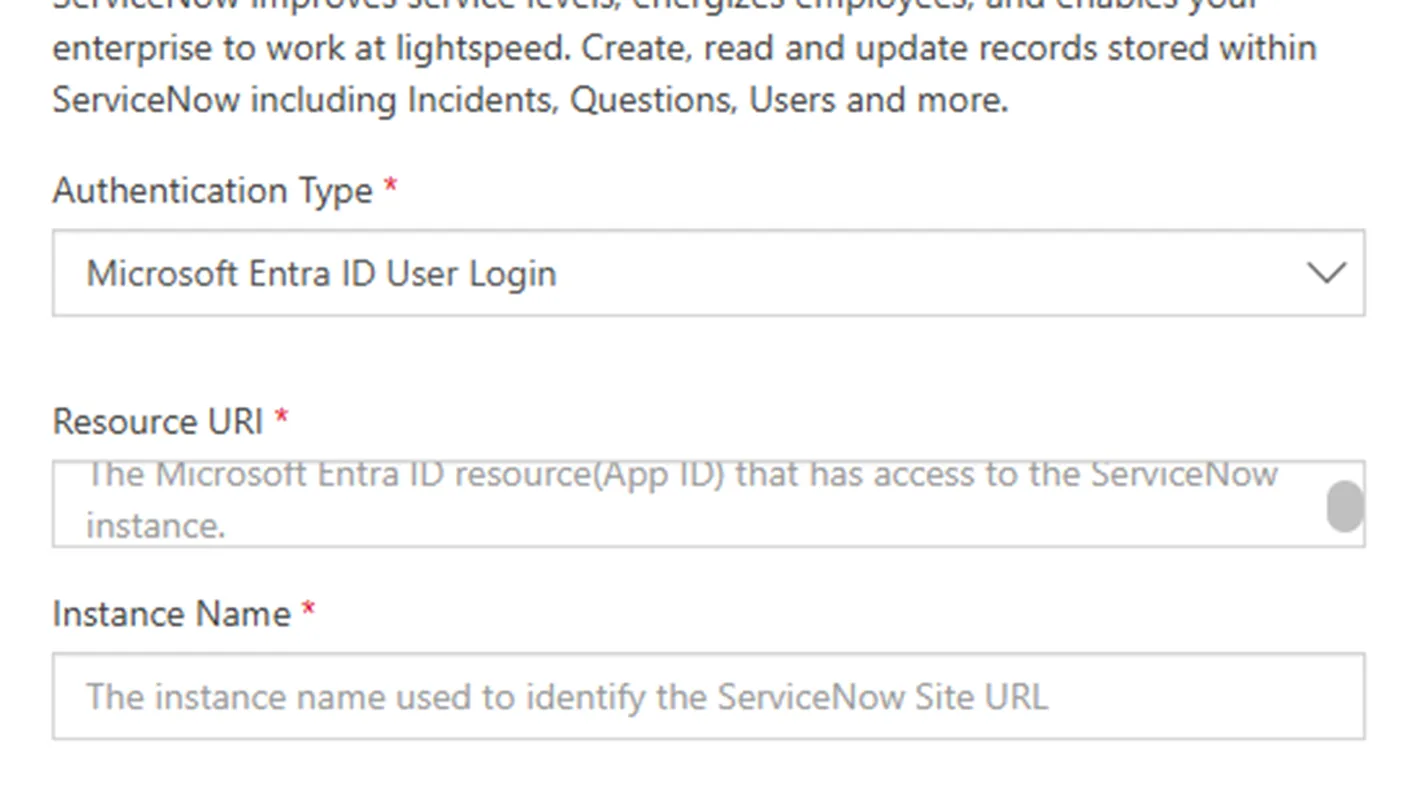
- Select Microsoft Entra ID User Login as the authentication type.
- Provide:
- Resource URI: the ServiceNow OIDC app’s Client ID GUID (from Step 1).
⚠ Use the Client ID GUID, NOT the
api://<client-id>URI. This is a common source of failures. - Instance Name: your ServiceNow instance subdomain only (e.g.,
dev12345; do not include the.service-now.comsuffix).
- Resource URI: the ServiceNow OIDC app’s Client ID GUID (from Step 1).
- Sign in with your Entra ID credentials to create the connection.
- Confirm the connection status shows as Connected.
Step 5: Enable connection parameter sharing (critical)
Why?This step is required for end-user connections to work
This is the step that allows end users to create their own connections. Without it, end users clicking Allow on the consent card will fail; only the maker’s own connection will work.
- In Settings > Connection Settings, select the ServiceNow connection.
- Go to the Connection parameters tab.
- Toggle “Allow permission to share parameters” to On.
- Verify the Resource URI and Instance Name are populated correctly.
- Click Save.
Without this toggle, Copilot Studio will fail to create per-user connections when either end users or makers click Allow on the consent card at runtime.
Step 6: Publish and test
- Publish the agent.
- Test with an end-user account (not the maker):
- The user sees a ServiceNow consent card with an Allow button in the chat.
- Clicking Allow creates a per-user connection using the parameters shared in Step 5.
- The user is prompted to sign in with their Entra ID account.
- Subsequent requests reuse this per-user connection automatically.
- Verify the ServiceNow operation succeeds under the end user’s identity by
checking:
- The record’s
sys_created_byorsys_updated_byfield in ServiceNow shows the end user, not a service account. - ServiceNow ACLs are enforced (e.g., users can only see records they’re authorized to see).
- The record’s
Troubleshooting
| Symptom | Likely cause | Fix |
|---|---|---|
| End user clicks Allow, connection fails | Parameter sharing toggle not enabled | Return to Step 5, enable “Allow permission to share parameters" |
| "Resource URI” error at connection creation | Used api://<client-id> instead of GUID | Use the raw Client ID GUID in the Resource URI field (Step 4) |
| Authentication succeeds but “User not found” in ServiceNow | Identity mapping mismatch | Verify the upn claim value matches sys_user.email (Step 3) |
| Long UPNs failing | Mapped to user_name (40-char limit) | Change User Field to email in OIDC Provider Configuration (Step 2) |
AADSTS65001 consent error | Authorized client not configured | Verify connector app c26b24aa-7874-4e06-ad55-7d06b1f79b63 is added under Expose an API > Authorized client applications (Step 1) |
| Connection works for maker but not end users | Parameter sharing not enabled | See Step 5 |
| Instance not reachable / 404 | Custom domain (e.g., .servicenowservices.com) | Not supported by OAuth User Login; see the Prerequisites limitation |
| ”Invalid redirect URI” | Wrong app configured / redirect mismatch | Application A should have no redirect URI; the connector app handles redirects |
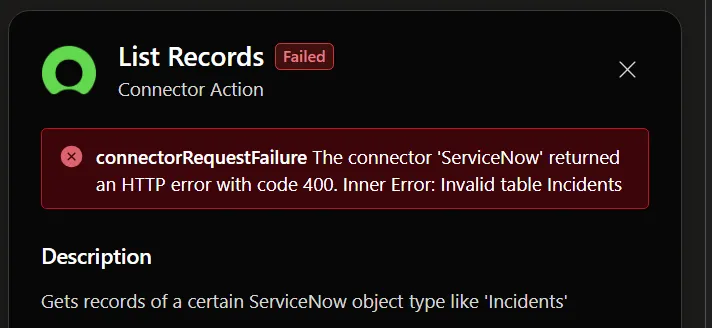
| Connector ‘ServiceNow’ returned HTTP 400: Invalid table | Wrong table name in tool config | Verify the ServiceNow table name (e.g., use incident, not Incidents) |
Security & governance checklist
- ✓ No client secrets stored in Copilot Studio for the delegated flow
- ✓ Only the Microsoft first-party connector app (
c26b24aa-…) is authorized on Application A - ✓ ServiceNow ACLs enforced per-user (validate with a low-privilege test user)
- ✓ JTI verification disabled (required for Entra tokens, which don’t include JTI)
- ✓ OIDC metadata cache lifespan set to 120 seconds (allows key rotation)
- ✓ Require confirmation nodes in the agent before any write operations (Create/Update/Delete records)
- ✓ Avoid exposing internal ServiceNow
sys_idvalues in agent responses - ✓ Use least-privilege ServiceNow roles for the users who will interact with the agent
References
- russrimm/servicenow-entra-skill: my two GitHub Copilot Agent Skills for Entra ID to ServiceNow identity: delegated Power Platform connector auth (this guide) and browser SSO
- ServiceNow connector reference (Power Platform / Copilot Studio)
- ServiceNow HRSD and ITSM integration for Microsoft 365 Copilot: the source for the connector app ID and the claim-to-user matching options
- Deploy the ServiceNow Knowledge Copilot connector
- Deploy the ServiceNow Catalog Copilot connector
- Add Copilot connectors as a knowledge source in Copilot Studio
- Extend your agent with Model Context Protocol
- ServiceNow product docs: OIDC ID token verification (varies by release; check the docs for your instance version)
Why?Document revision history
v1.0: 2026-06-01, Russ Rimmerman. Initial complete setup guide for configuring delegated Microsoft Entra ID user authentication with the ServiceNow connector in Copilot Studio, including prerequisites, implementation steps, troubleshooting, security guidance, and references. Tested against ServiceNow Yokohama, Zurich, and Australia releases.
v1.1: 2026-07-30, Russ Rimmerman. Added the “Choosing an integration path” section: a decision tree across all four integration surfaces, plus comparison tables for Copilot connector authentication (Federated Auth, Basic, OAuth 2.0, Entra ID OIDC) and ServiceNow connector authentication (User Login, Certificate, ServiceNow OAuth 2.0, Basic) with requirements and trade-offs.
v1.2: 2026-08-09, Russ Rimmerman. Added references to the
servicenow-entra-skill repository: two GitHub Copilot Agent Skills covering
the delegated Power Platform connector flow described here and the separate
ServiceNow browser SSO scenario.
v1.3: 2026-08-10, Russ Rimmerman. Re-verified the connector app IDs, the 600-call-per-connection throttle, and the Federated Auth requirements against Microsoft Learn. Added the ServiceNow HRSD/ITSM reference and expanded the identity-mapping guidance for tenants whose ServiceNow user IDs aren’t emails or UPNs.
Get the latest learnings
Occasional notes on Azure, AI, and cloud architecture. No spam, unsubscribe anytime.
Related articles
Power Apps Code Apps: Your Code, Power Platform's Guardrails
Code apps let you build a React or Vue app in your own IDE and run it on Power Platform, with Entra ID sign-in, 1,400+ connectors, and DLP handled for you.
Finding GitHub Copilot Harness Agents Before PPAC Shows Them
The Power Platform admin center still doesn't flag which Copilot Studio agents run on the GitHub Copilot harness. The isCLIAgent property does, and Microsoft has now published governance guidance built on it.
The Copilot Studio Auth Trap: Turning On SSO Changes Your Client
Turning on authentication breaks the Copilot Studio SDK with EnvironmentSettingViolation. Here's why Direct Line and a server-side token exchange are the fix.
Comments
Comments are hosted by GitHub Discussions. Loading them connects your browser to giscus.app and GitHub.